Carplay Screen for Car, Apple CarPlay Android Auto Screen, 7″ HD Portable Car
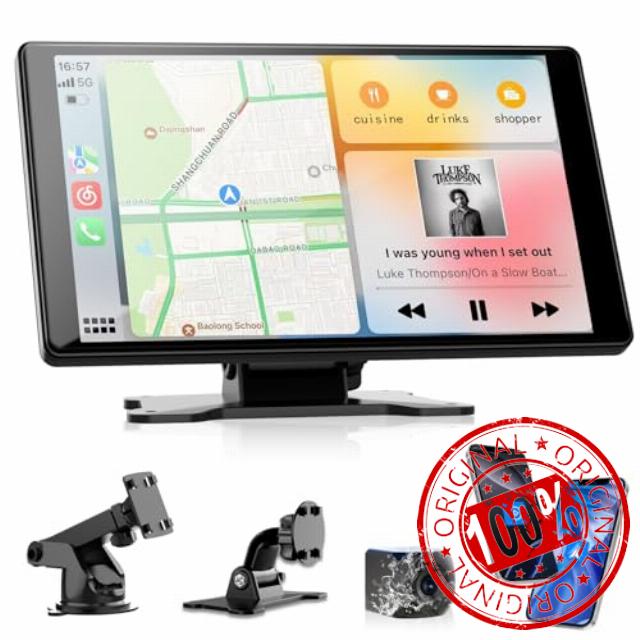
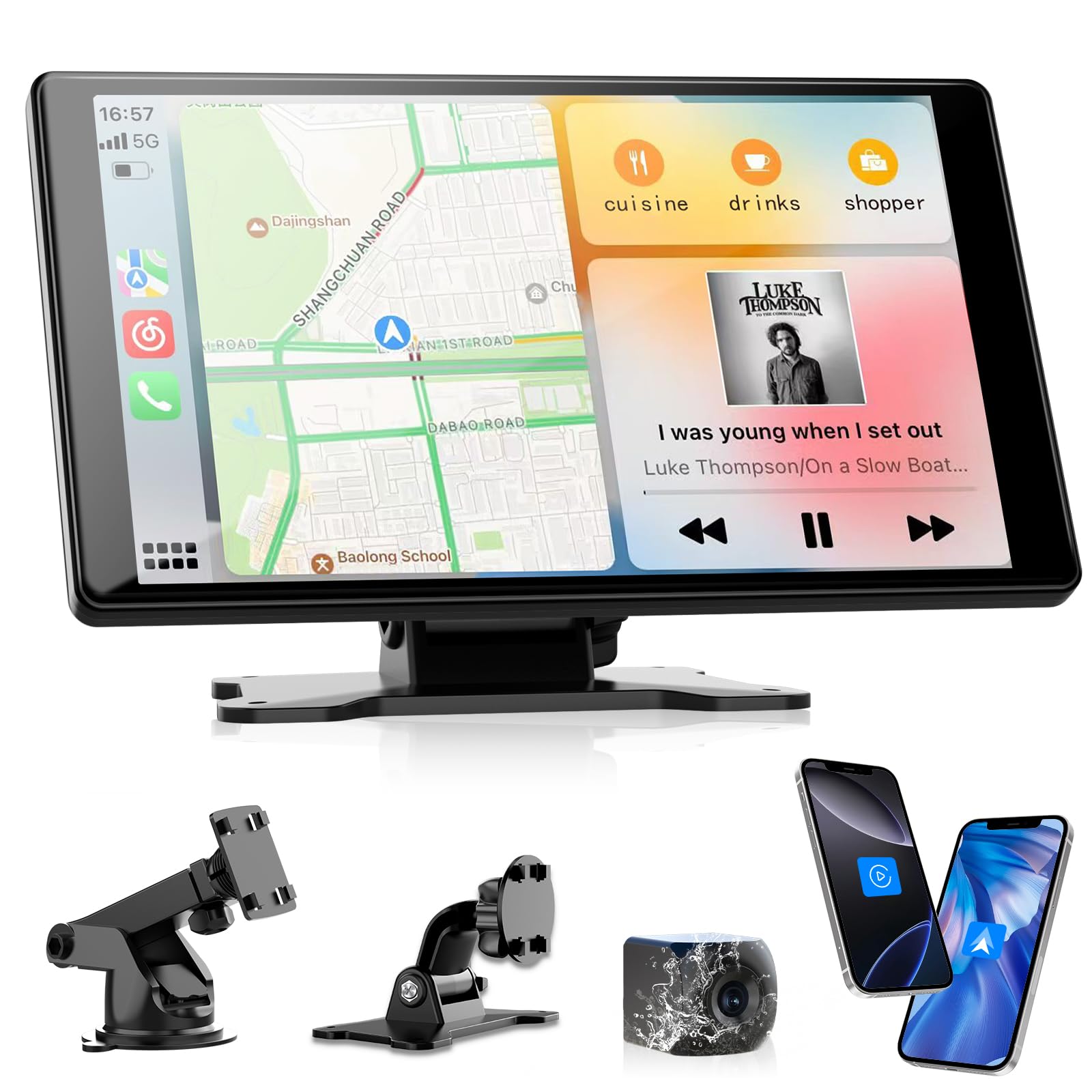
Carplay Screen for Car, Apple CarPlay Android Auto Screen, 7″ HD Portable Car Stereo with Reverse Camera, Car Audio Receivers for All Vehicles with Mirror Link, GPS Navigatio
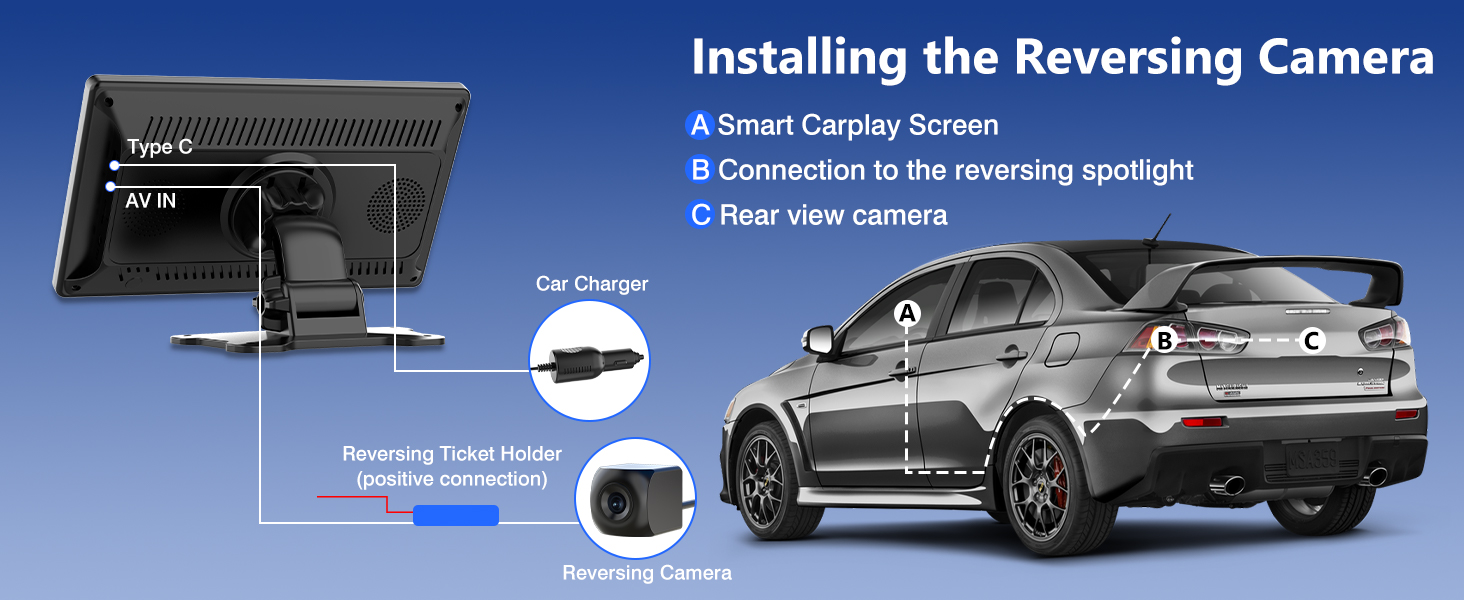
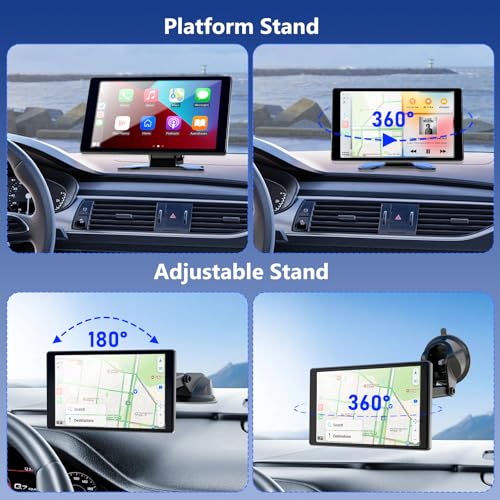
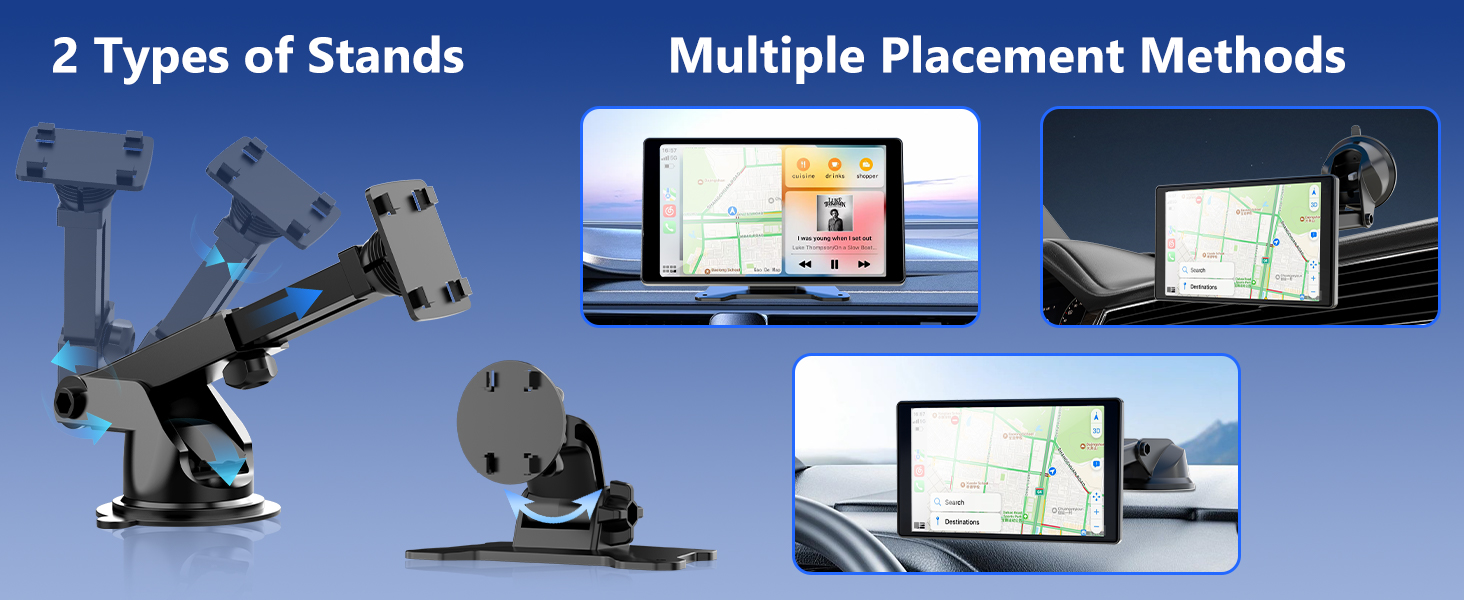
- Effortless Plug & Play Setup: Powers directly via the cigarette lighter. Includes 2 adhesive mounts for quick, tool-free installation on windshields, dashboards, or other smooth surfaces
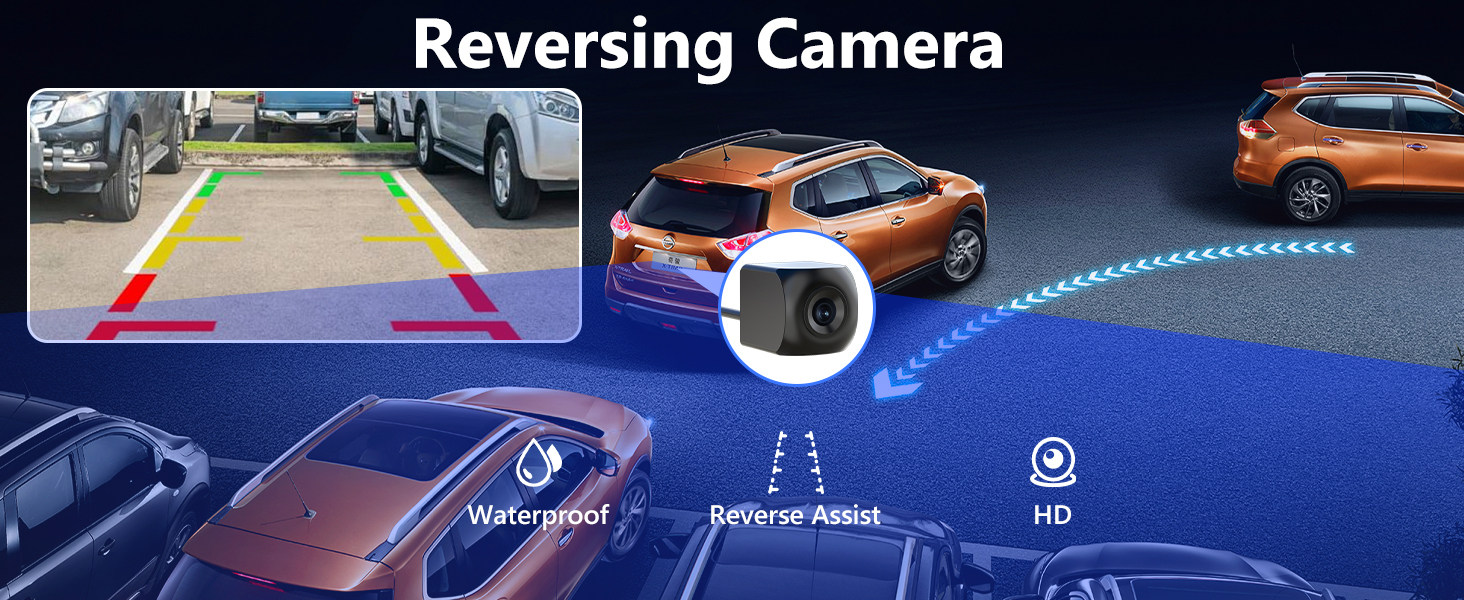
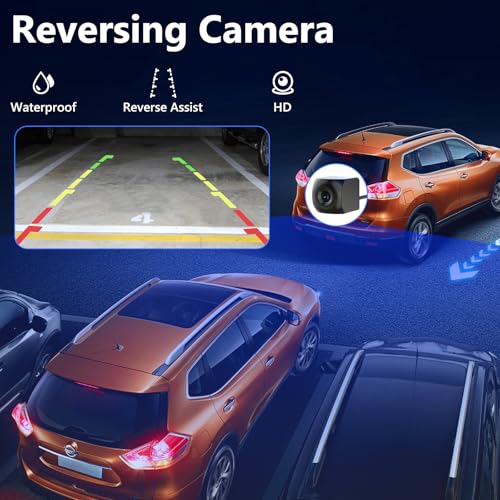
- Integrated HD Reversing Camera: Features a high-definition rear camera. Automatically displays the rear view on the 7" screen when shifting into reverse gear, providing essential visual assistance (Note: Visual aid only; not a recording device)
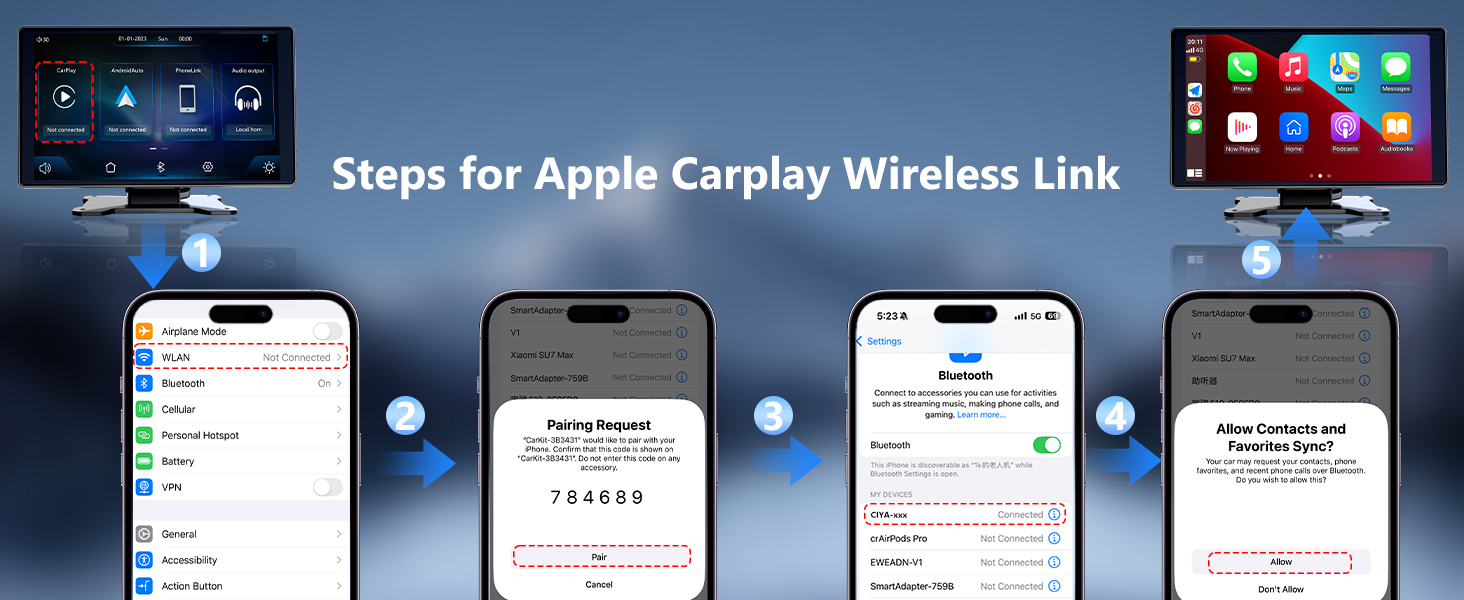
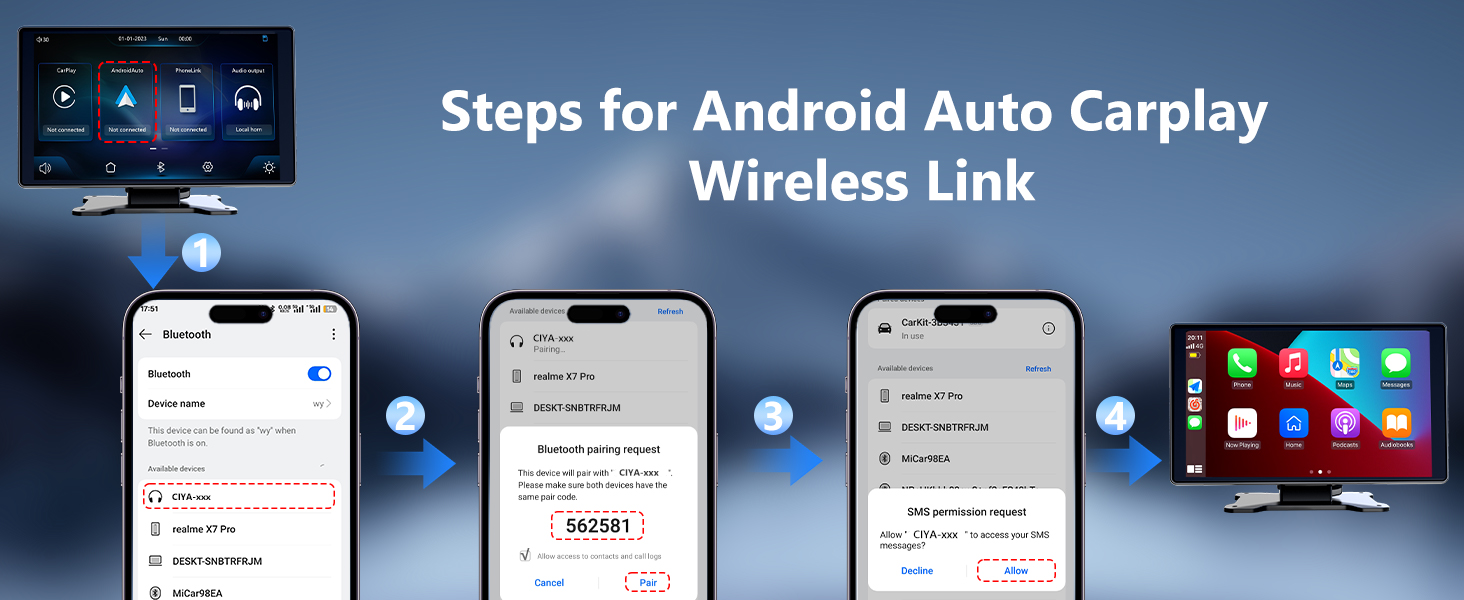
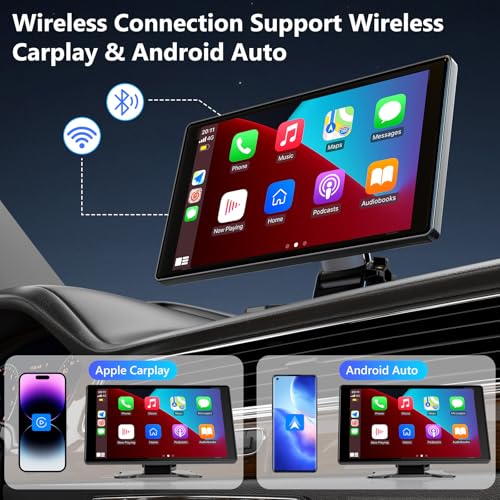
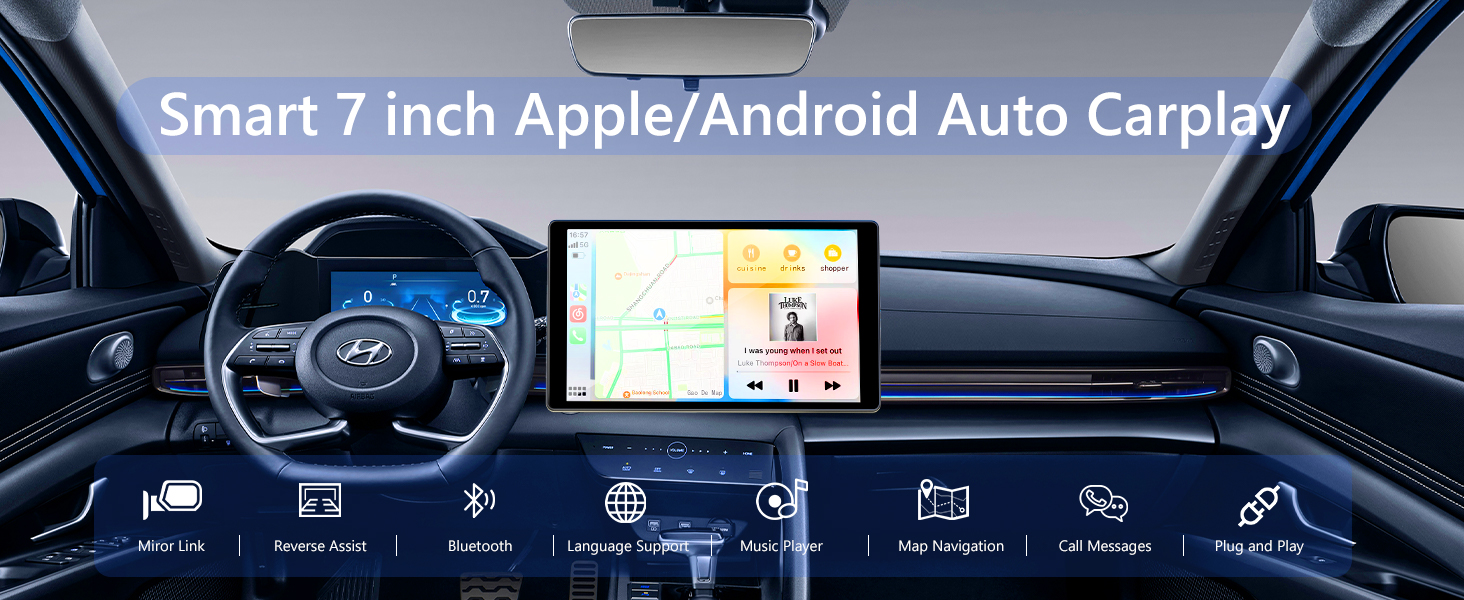
- Seamless Smartphone Integration: Fully compatible with both Apple CarPlay and Android Auto. Connect your phone to instantly access navigation, music, calls, FM radio, speakers, and Bluetooth controls via the touchscreen
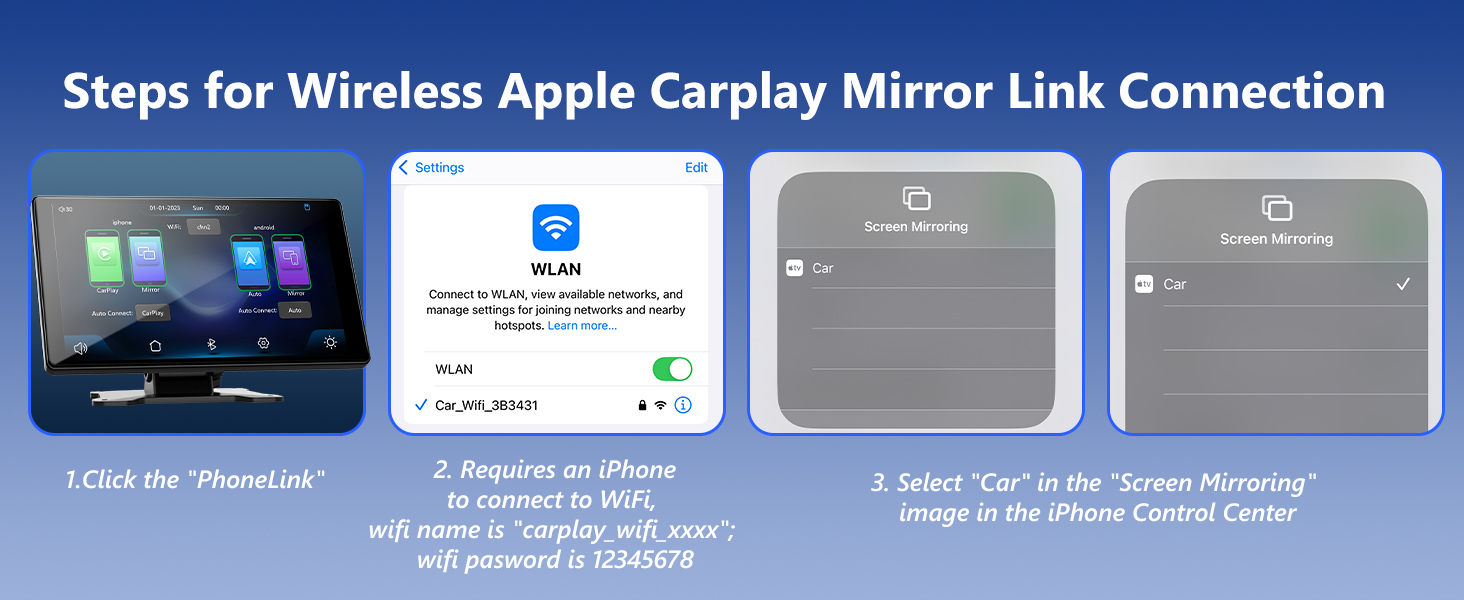
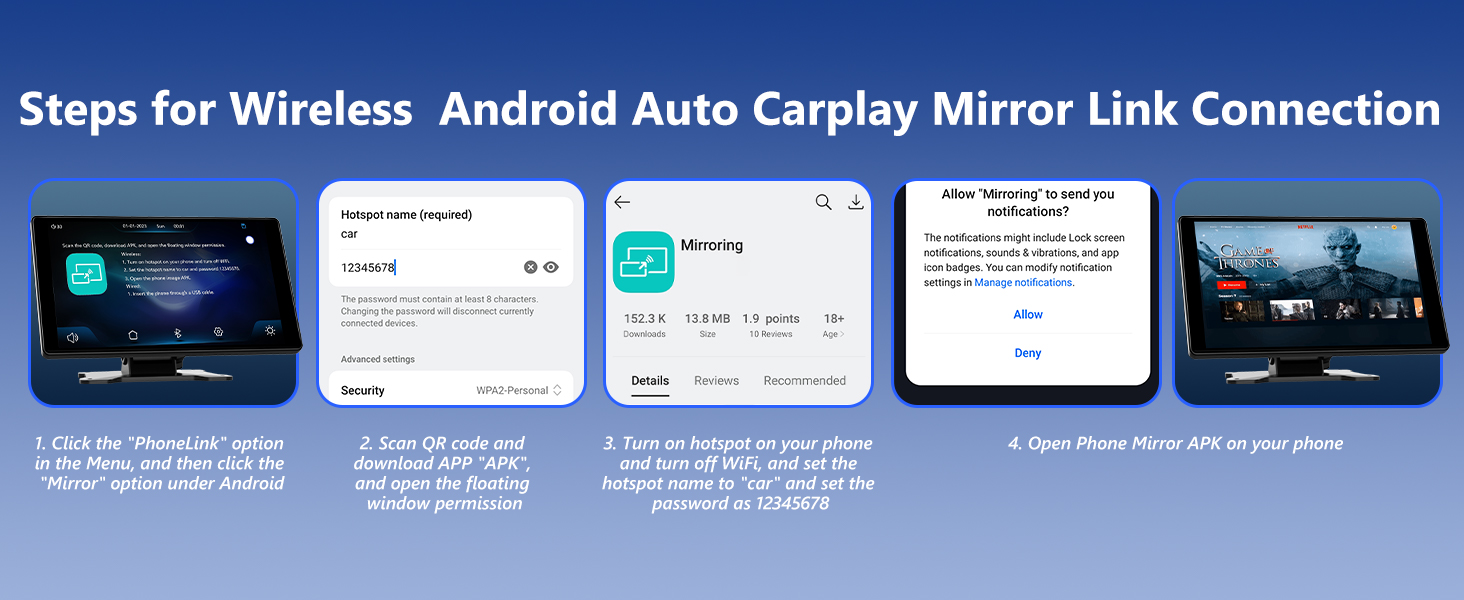
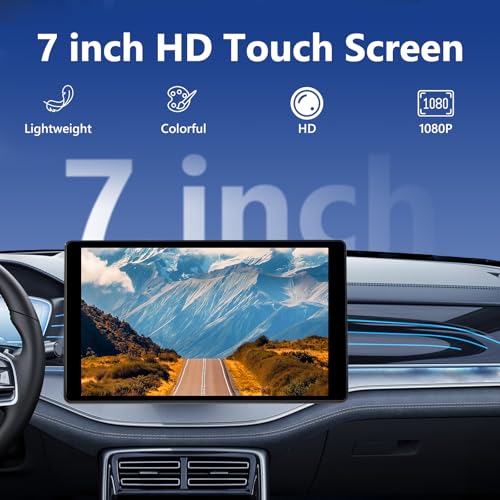
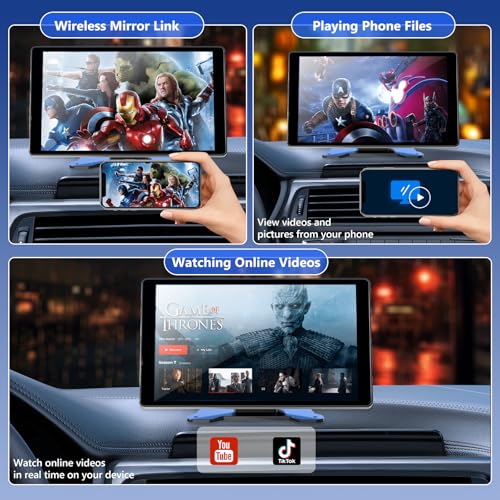
- Wireless Screen Mirroring: Supports wireless mirroring for nearly all IOS and Android. Enjoy movies, maps, and more on the large 7" Full HD IPS display
- Real-Time GPS Navigation: Experience smooth, delay-free navigation with accurate real-time GPS on the responsive 7" touchscreen. View clear, zoomable map information for precise route guidance
Solution when mirroring fails:
Customers can start the factory reset function in CarPlay, and then try to use the mirroring function of the device again by following the normal operating steps.
How to make car audio systems produce sound?
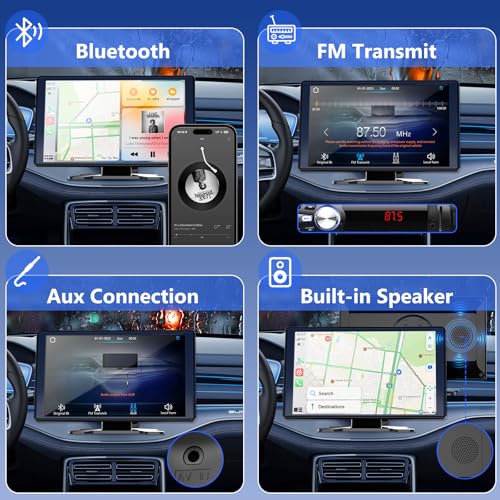
1.Original Bt: After you click this one, the screen will pop up a notification saying‘Switch to the original car Bluetooth?’, you need to choose ‘Confirm’. And then use your phone to connect to the car Bluetooth, in this way the sound will come out from your car speaker.
2.FM Transmit:After you click this one, the screen will pop up a notification saying ‘Switch to FM transmission?’, you need to choose ‘Confirm’. Please set the transmission frequency the same both on this carplay screen and your original carradio.
3.AV IN: After you click this one, the screen will pop up a notification saying ‘Switch to AUX?’, you need to choose ‘Confirm’. And then use the included AUX cable to connect this carplay screen to your car’s aux port.
4.Local horn: After you click this one, the screen will pop up a notification saying ‘Switch to local speaker?’, you need to choose ‘Confirm’. And then the sound will be coming out from built-in speaker of this unit.
-

- Carplay Screen for Car
-
- 7″ HD Portable Car Stereo Touch Screen with Backup Camera
-
- Car Audio Receivers with Wireless Android Auto
-
- Voice Control
-
- Mirror Link
-
- GPS Navigatio
| SKU: | B0FJS5ZQL7 |
Product Description
Solution when mirroring fails:
Customers can start the factory reset function in CarPlay, and then try to use the mirroring function of the device again by following the normal operating steps.
How to make car audio systems produce sound?
1.Original Bt: After you click this one, the screen will pop up a notification saying‘Switch to the original car Bluetooth?’, you need to choose ‘Confirm’. And then use your phone to connect to the car Bluetooth, in this way the sound will come out from your car speaker.
2.FM Transmit:After you click this one, the screen will pop up a notification saying ‘Switch to FM transmission?’, you need to choose ‘Confirm’. Please set the transmission frequency the same both on this carplay screen and your original carradio.
3.AV IN: After you click this one, the screen will pop up a notification saying ‘Switch to AUX?’, you need to choose ‘Confirm’. And then use the included AUX cable to connect this carplay screen to your car’s aux port.
4.Local horn: After you click this one, the screen will pop up a notification saying ‘Switch to local speaker?’, you need to choose ‘Confirm’. And then the sound will be coming out from built-in speaker of this unit.